
PlayerSynergy editorial · Source checked October 17, 2026. AI-assisted research and writing, reviewed before publication. This is a practical guide, not a hands-on benchmark.
Steam Game Recording can catch the match that finally goes your way. You land the play, remember the recorder was running, then wonder where the actual video went. Before buying another capture tool—or clearing folders in frustration—separate the temporary recording from the clip you want to keep.
Check what Steam is keeping
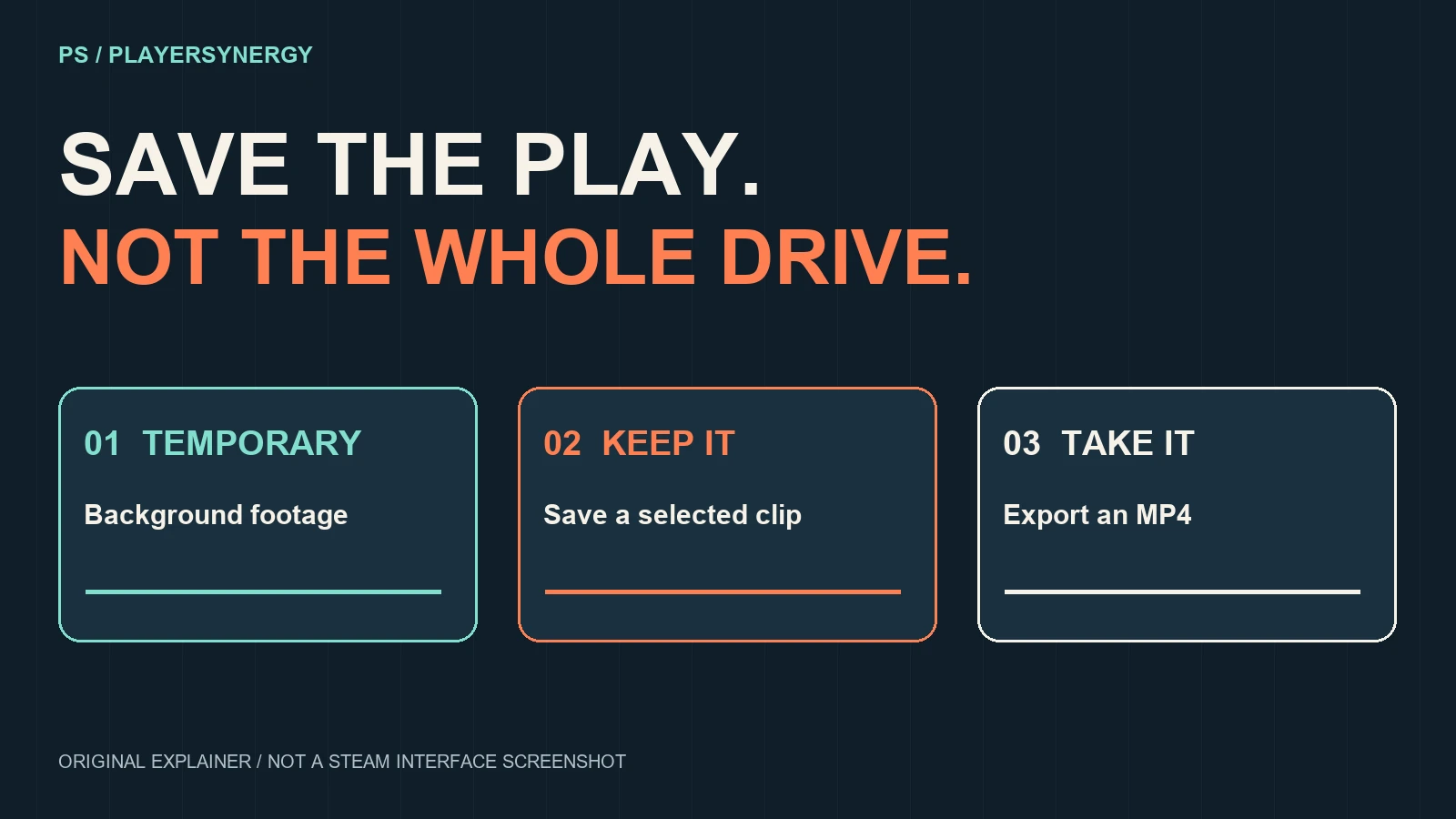
In Steam → Settings → Game Recording, choose background or on-demand capture and review the storage and audio settings. Valve says background footage is temporary: older recordings are overwritten when the assigned space fills. Saving a clip protects that selected moment from the temporary recording cycle. Valve’s recording guide explains the controls.
A saved clip and an exported video are different steps
Steam stores recordings with timeline data. For an MP4 you can edit elsewhere, create a clip and choose Export Video File from the sharing options. Find your captures through View → Recordings & Screenshots in the desktop client.
Our recommendation: keep one small test before the big session
Make a short, unimportant clip. Export it, open the exported file and listen. Can you hear the game? Did a private conversation make it into the mix? Is the moment you meant to save actually there? This is a suggested check, not a test we performed on your computer. Better to catch a bad setup with a practice clip than your best match of the week.
Low storage? Adjust the recorder before buying anything
Valve recommends a roomier recording destination or shorter/lower-quality background capture when storage runs low. Review important clips before removing files. Don’t bulk-delete unfamiliar recording folders.
The move today: save one keeper, export it and verify playback. Your highlight deserves better than becoming a folder mystery.
On console instead? Read our PS5 clip guide. Need help? Send the game, device and exact problem through Feedback & Questions—keep account details private.