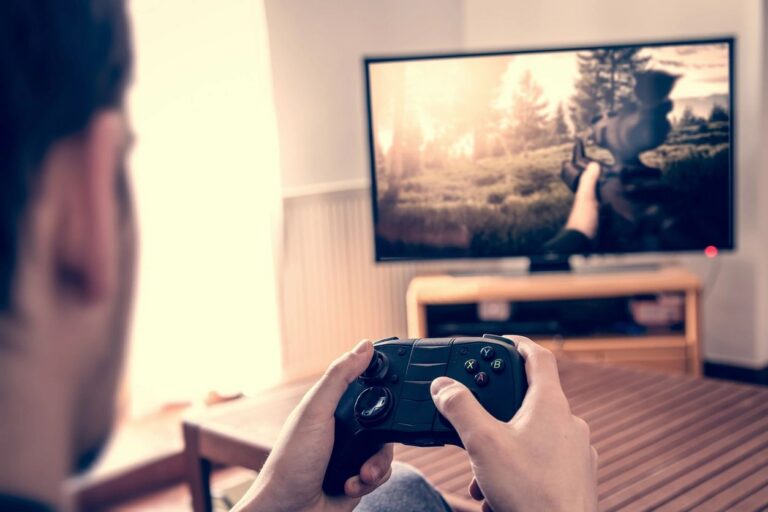
Your controller works in one game and disappears in another. That does not automatically mean the controller is broken. Start by finding the layer where input stops: the connection, Steam, the game or an extra remapping tool.
First, describe the failure
Write down the controller model, whether it is wired or wireless, the game and the exact symptom. “No buttons register” is different from “the camera spins” or “every press happens twice.” Keep a note of the current layout before changing it.
Use the same game menu for each test. If the fault is intermittent, repeat the same short sequence rather than opening several games and changing several settings together.
Check whether the connection is detected
If you already have a suitable data cable, compare a wired connection with the wireless connection. Avoid buying an adapter before this basic comparison. If neither Steam nor your operating system detects the device, start with the connection rather than editing a game layout.
If detection changes when you change a cable or port, record that result. It narrows the problem but is not a laboratory diagnosis of a failed component.
Understand what Steam Input is doing
Valve documents Steam Input as a way to support different controller devices and game input systems. Its player guide also explains that an external remapping tool can present an emulated controller instead of the original device. Check which device the game is actually receiving before adding another layer of mapping.
For the affected game, inspect the available controller settings and layout in your current Steam client. Menu wording can change. Keep the existing configuration recorded, make one adjustment, and test. A setting that helps one game should not be copied across your library without checking the result.
Watch for competing mappings
If you deliberately installed a remapping app, compare a test with that app closed against your normal setup. Do not uninstall anything just to experiment. If two tools are mapping the same press, adding a third tool makes the test harder to understand.
For an unexpected button assignment, compare the layout with what the game expects. A controller appearing in a settings screen does not prove that the active gameplay bindings are correct.
Make a small recovery note
- Game and controller model.
- Connection type that worked.
- Active layout and the one setting changed.
- Any remapping app that needed to be closed.
- Result after restarting the game.
Restore the previous setting if the change does not help. If the problem survives, send this note to the game’s support team. A reproducible description beats “I tried everything” and avoids a new purchase based on guesswork.
Should you replace the controller?
Only after you have stronger evidence of a hardware fault. A failure limited to one game’s configuration deserves a different investigation from a device that cannot be detected anywhere.
References: Valve’s Steam Input player guide and supported device documentation. No hands-on hardware testing is claimed.